Fri Jul 17 2020
...
Adding Comments to a BigCommerce Blog
Add Audience Engagement to Any Page
What if your audience could comment on your blog posts, ask questions, and provide feedback? Now they can with FastComments.
Custom Themes
To add FastComments to your BigCommerce store's blog, you'll need to edit your theme templates. We'll guide you through it.
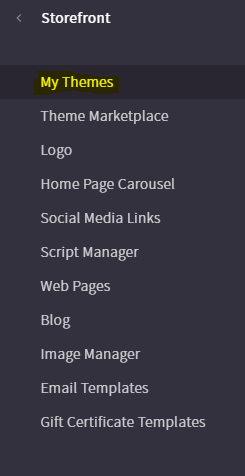
In the BigCommerce dashboard, go to Storefront -> My Themes.
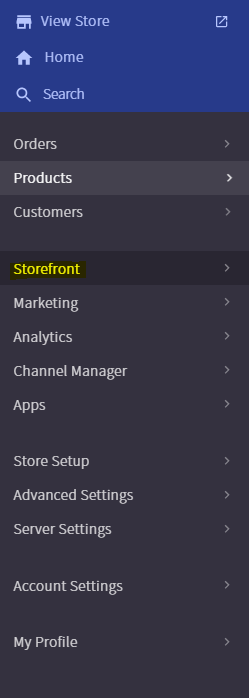
Under "Current Theme," you'll see a dropdown labeled "Advanced."
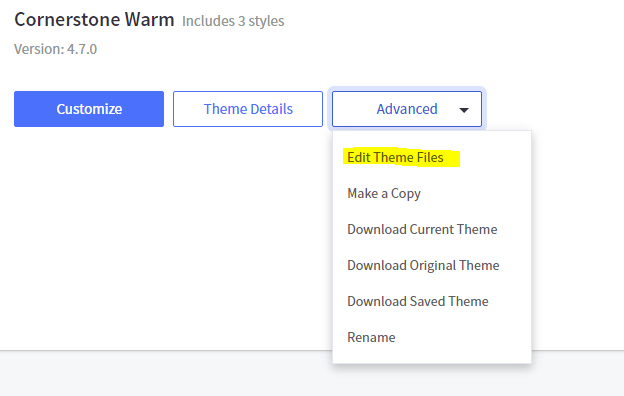
In this dropdown, the first option is "Edit Theme Files." If this option is not clickable, you will first need to copy the theme via "Make a Copy."
Once you can open the template editor, you'll see a file browser on the left side of your browser. This is a file browser for the templates in your theme.
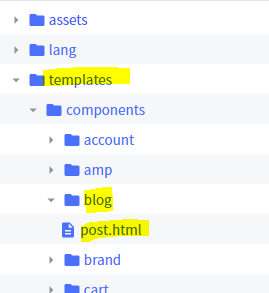
You'll want to navigate to the HTML template that represents a blog post. It's at templates/components/blog/post.html, as illustrated:
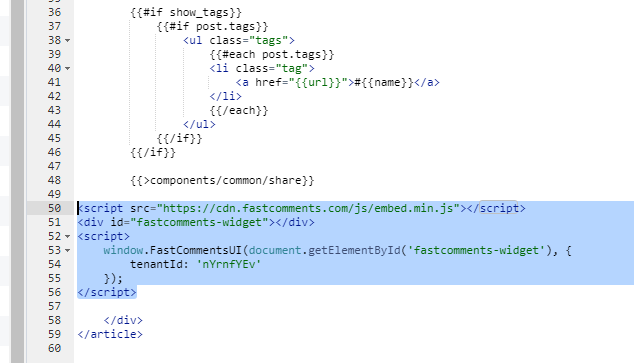
Your FastComments code snippet, which you can obtain from here, should be pasted right after line 48, which contains the text "{{>components/common/share}}".
Remember!
You'll need to add your store's domain to FastComments, which you can do here.
In Conclusion
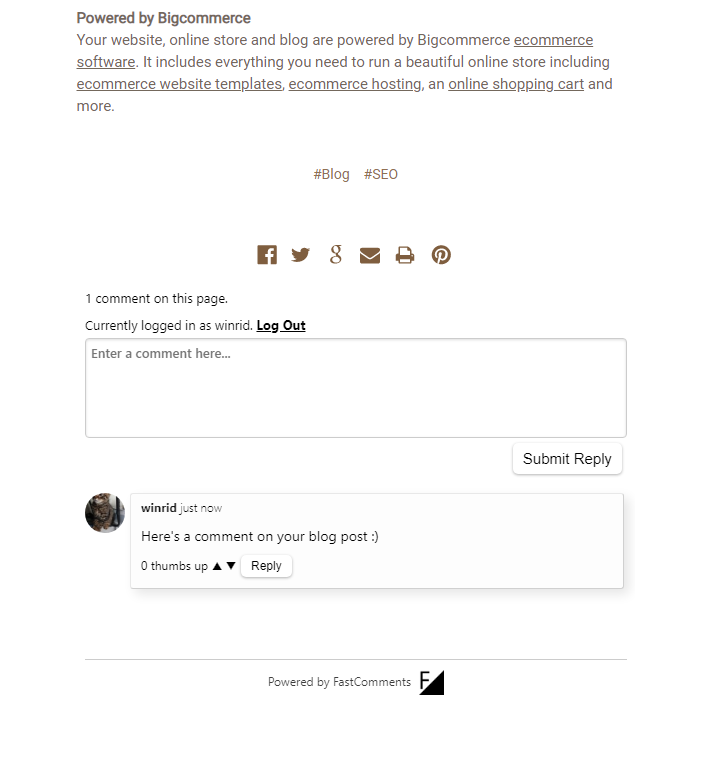
Here's what FastComments should look like on your BigCommerce blog. Cheers!