

Sun Mar 01 2026
...
FastComments Moodle Plugin
What's New
We are excited to announce the official FastComments plugin for Moodle. If you have been using Moodle and wanted to add live, threaded commenting or collaborative chat to your courses, this plugin makes it simple. It replaces the old manual PHP approach with a proper Moodle plugin that installs in minutes and integrates with your existing Moodle user accounts. The plugin works with Moodle 4.1 and later, and the source is available on GitHub.
Getting Started
To install, get the plugin from the Moodle Plugin Directory and install it
via your Moodle site's plugin installer. Alternatively, you can download it and extract it to
<moodle-root>/local/fastcomments, then log in as a site administrator and visit Site Administration > Notifications.
Moodle will detect the new plugin and run the install automatically.
Once installed, head to Site Administration > Plugins > Local plugins > FastComments to configure. You will need your Tenant ID (found in your FastComments dashboard) and your API Secret if you want to use Secure SSO, which we recommend.
Commenting Styles
The plugin supports three commenting styles, so you can pick what works best for your students and course structure.
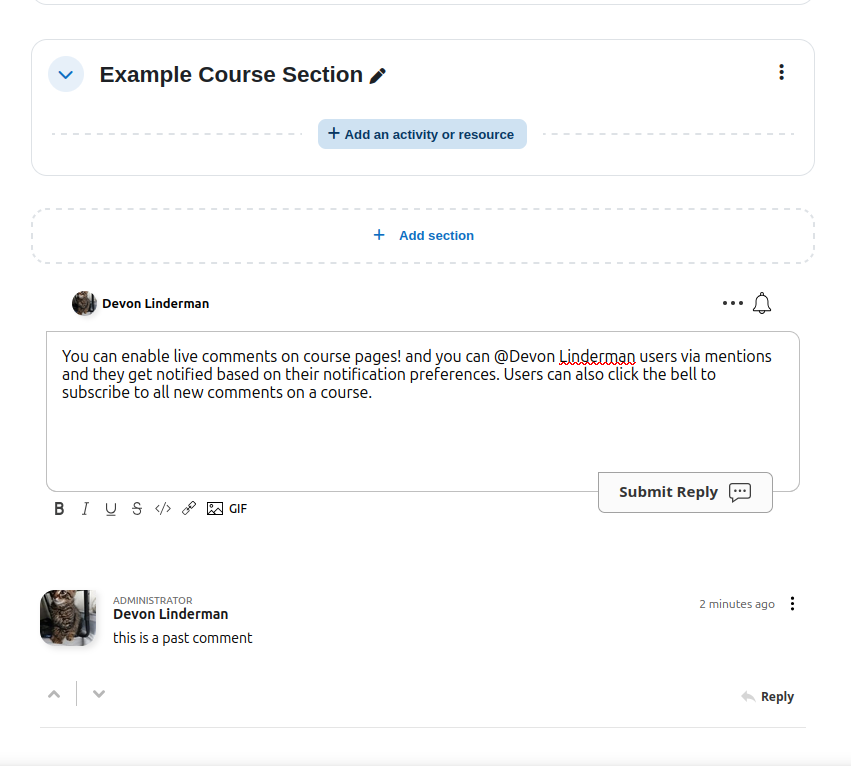
Comments mode places a full comment widget below the page content. Students get threaded replies, @mentions, upvoting and downvoting, a rich text editor, and the notification bell for subscribing to new comments on a page.
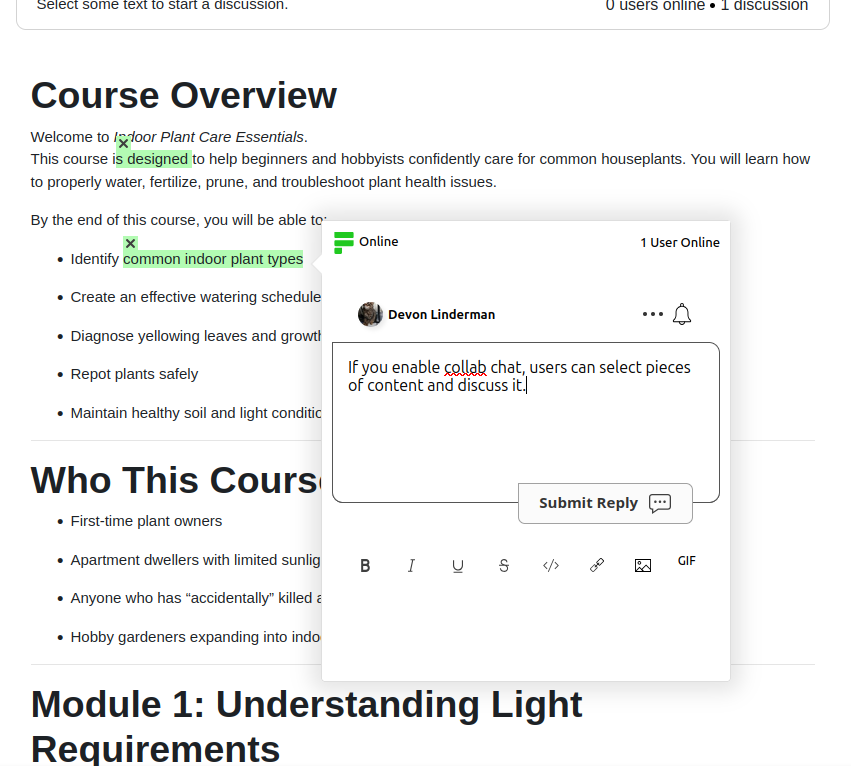
Collab Chat mode adds a bar at the top of the page that prompts users to select text and start a discussion. The highlighted text is anchored to the content, so the conversation stays tied to exactly what is being discussed. It also shows online users and the number of active discussions. This mode does not render a bottom widget.
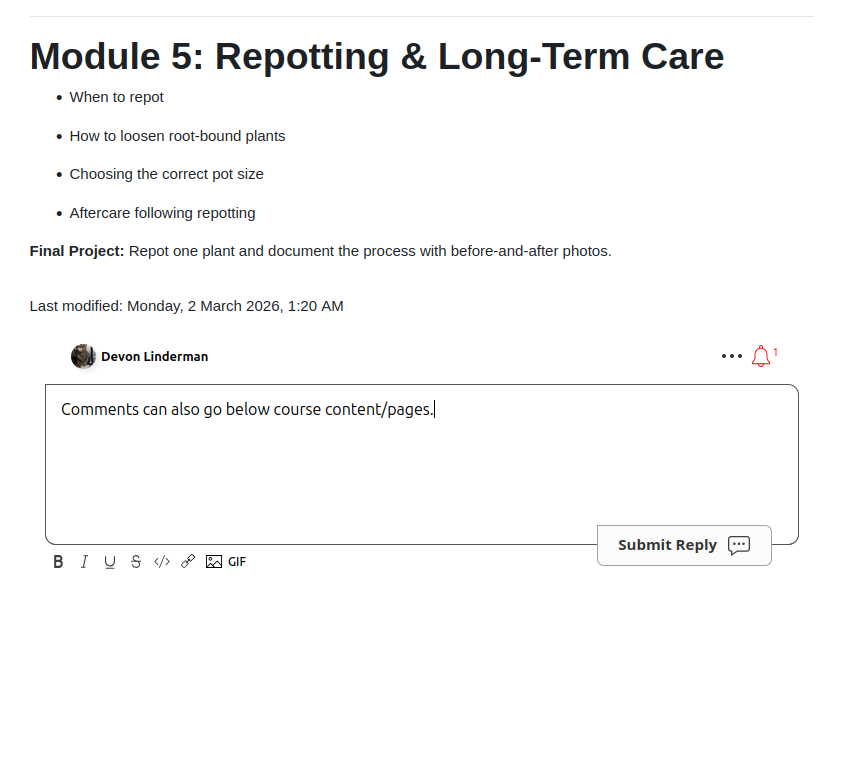
Collab Chat + Comments gives you both at the same time. Students can highlight text for inline discussions and also use the full comment widget below the content. This is great for courses where you want both quick inline feedback and longer threaded conversations.
Automatic SSO
The plugin supports three SSO modes. Secure SSO is the recommended option. It signs user identity server-side with HMAC-SHA256 using your API Secret, so credentials are never exposed on the client. With Secure SSO, Moodle admins are automatically synced as FastComments moderators, which means your site administrators can moderate comments without any extra setup. User avatars, names, and email addresses are all passed securely.
Simple SSO passes user data (name, email, avatar) client-side without a signature. It is quick to set up but less secure than the HMAC approach. Finally, None disables SSO entirely, so users comment anonymously.
User Notification Preferences
Students can manage their FastComments notification settings directly from their Moodle profile. Under the FastComments section they can toggle reply notifications (get an email when someone replies to their comment) and subscription notifications (get emails for threads they have subscribed to). This keeps everything in one place and gives students control over how much email they receive.
In Conclusion
The Moodle plugin is available now. For the full setup walkthrough, check out the Moodle Integration Guide, and the source code is on GitHub. Let us know below if you have any feedback!
Cheers!